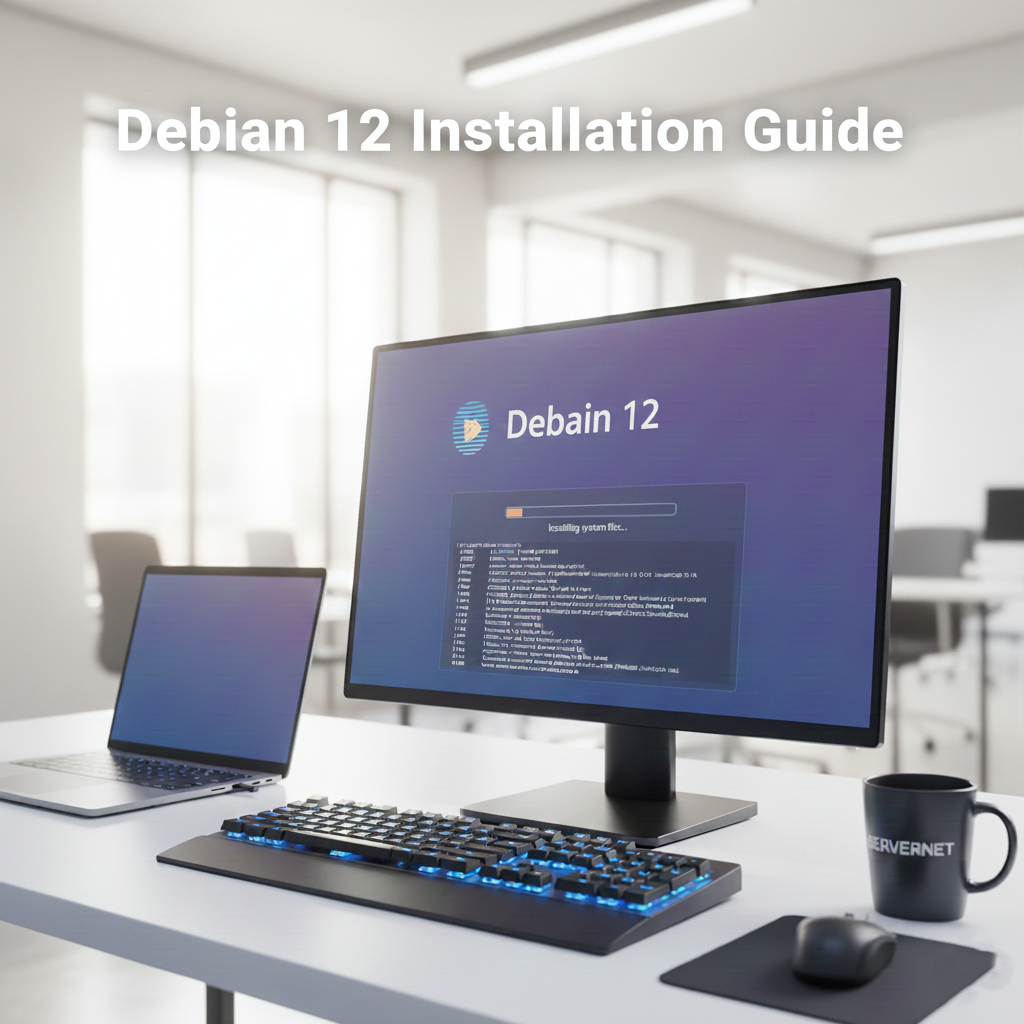
Debian 12 (“Bookworm”) is a stable and reliable Linux distribution that is widely used for production servers,
virtualization platforms and hosting environments. This
Debian 12 installation guide walks you through the entire server installation process step by step:
ISO mount, graphical installer, static IPv4 network configuration, user and root password management,
manual storage layout, package selection and the final reboot.
The instructions and screenshots are based on a typical dedicated server or KVM VPS setup, where you mount an
installation ISO through a remote console (IPMI, KVM or similar) and install Debian 12 server onto a new disk.
By carefully following each step in this Debian 12 Bookworm guide, you will end up with a clean, production-ready
Debian 12 system that you can immediately access over SSH and use as a base for web hosting, containers or
virtualization workloads.
with full access to a remote console and ISO mounting capability. If an operating system or data already exists
on the disk, make sure you have valid backups before proceeding.
Step 1 – Debian 12 Graphical Installer
In this first step, you start the Debian 12 graphical installer from the ISO mounted on your dedicated server
or virtual machine console. These screens define the language, location and basic installer environment.
1. Start the installation by selecting the “Graphical install” option.

and virtual machines. After initiating the installation, wait a few moments for the installer to load the required
components and move to the next screen. During this phase, the installer detects hardware, storage controllers and
network interfaces.
2. Wait while the installer prepares the environment.

the next questions.
3. Select your preferred language.

4. Choose your location.

Step 2 – Network Configuration (Static IPv4)
Correct network configuration in Debian 12 is essential, especially on remote dedicated servers and VPS instances.
In this step, you configure a static IPv4 address, netmask, gateway and DNS servers so that your server is reachable
immediately after installation.
after installation. Double-check the main IP, netmask, gateway and DNS values before continuing, especially on
remote dedicated servers and VPS instances.
5. Select the network interface to use.

enp1s0f0. Select the correct interface that isconnected to your provider network.
6. Proceed to IPv4 configuration.

7. Use “Go Back” to choose manual configuration if needed.

8. Select “Configure network manually”.

9. Perform the IPv4 configuration.

- Address: Your server’s main IPv4 address.
- Netmask: The subnet mask that matches your IP block.
- Gateway: The default route provided by your hosting provider.
in the Debian 12 installation guide, because it defines how the server will be reachable on the network after the
first boot.
10. Enter the gateway address.

11. Configure your DNS servers.

85.208.196.51 and 85.208.196.52, or your preferred resolvers.12. Set your server hostname.

debian12.example.com).13. Optionally specify a domain name.

Step 3 – User & Root Password Management
In this step, you configure the root password and create a non-root user account. This user is typically used
for daily administration with sudo.
14. Set a strong root password.

15. Create a non-root user account.

16. Confirm the username.

17. Set a secure password for this user.

sudo instead of logging in directly as root.will be exposed to the internet. After installation, consider hardening SSH by using key-based authentication
and disabling direct root logins.
Step 4 – Storage Configuration (Manual Partitioning)
Storage layout is a key part of a professional Debian 12 server setup. Using manual partitioning allows you to
control separate partitions for /boot, swap and the root filesystem.
disk may be deleted. Make sure you are working on the correct device and that important data is backed up
before writing changes to disk.
18. Choose the “Manual” option for disk configuration.

/boot, swap and / according to your needs.19. Delete old partitions if an OS was previously installed.

20. Confirm the removal by selecting “Yes”.

21–22. Follow the on-screen prompts to create new partitions on the target disk.


23. Specify the size for the /boot partition.

24–29. Confirm the boot partition settings and return to the partition list.


30. Specify the size for the swap partition.

31–36. Confirm the swap configuration and prepare the remaining free space for the root filesystem.


37. Allocate all remaining space to the root directory (/).

38. Review the final partition layout.

39. Select “Finish partitioning and write changes to disk”.

40. Confirm by choosing “Yes”.

and one root (
/) partition is enough for Debian 12 servers. More advanced setups can useLVM or ZFS, but this guide focuses on a standard Debian 12 installation with classic partitions.
Step 5 – Package and Software Settings
In this step, you configure the Debian package manager, mirrors and select which software components will be installed
initially.
system utilities. You can install web stacks, databases or control panels later using
apt or automationtools like Ansible.
41. When asked about scanning additional installation media, choose “No”.

42. Choose a country for the package manager mirror.

43. Select the suggested mirror or a preferred mirror from the list.

44. If you do not use a proxy, leave the proxy field blank and continue.

45. Allow the installer to configure the package manager by selecting “Yes”.

46. Choose the software components that best match your use case.
SSH server and standard system utilities). Additional services can be installed later.
Step 6 – Completing the Debian 12 Installation
Once all parameters are defined, the installer writes the Debian 12 system to disk, installs GRUB and finalizes
the base system.
47. Wait for the installation to complete, then restart your server.

Step 7 – Extracting the Mounted ISO
After Debian 12 has been installed, the server must boot from the local disk instead of the virtual ISO.
Many remote management consoles require you to manually unplug the ISO image, similar to the Ubuntu 24.04 process.
48. After the reboot, an ISO ejection warning may appear.

49. From the remote management menu, go to “Virtual Storage”.

50. Click “Plug Out” to disconnect the ISO.

51. Wait for your server to boot into the freshly installed Debian 12 system.

the freshly installed Debian 12 system. Always verify that the virtual CD/DVD device is unplugged after
installation.
Conclusion – Preparing Your Debian 12 Server for Production
By following this Debian 12 installation guide step by step, you have prepared your server, configured
a static IPv4 address, created secure user accounts, deployed a clean storage layout and installed the base
Debian 12 (“Bookworm”) operating system with the packages that fit your use case. The result is a predictable,
production-ready Debian 12 server that you can manage remotely over SSH.
As a next step, log in via SSH or console and perform essential post-installation tasks:
- Update the package index and apply security patches using
apt update && apt upgrade. - Configure a firewall (for example using
ufw,nftablesoriptables) to limit open ports. - Harden SSH by disabling root password login and enabling key-based authentication.
- Set up monitoring, backups and logging according to your infrastructure standards.
Whether you run Debian 12 on a bare-metal dedicated server or a virtualized environment, this structured
installation process provides a repeatable baseline you can reuse across new deployments in your infrastructure.